iPhoneセキュリティ強化ガイド
CyberLord Team 著者プロフィール
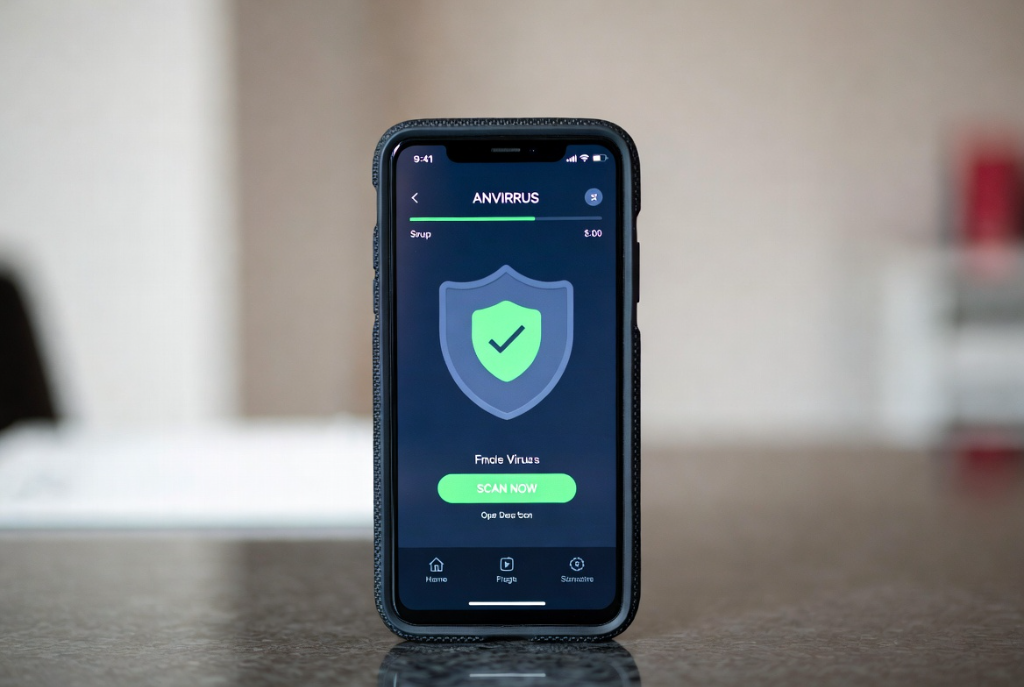
iPhone を継続的に安全にする設定
iPhone の安全性は導入直後ではなく継続的に保つことが重要です。iOS のアップデートの自動適用をオンにし、App Store からのダウンロードのみを許可し、構成プロファイルのインストールを MDM で管理します。Face ID とパスコードは六桁以上にし、紛失時にデータを遠隔消去できるデバイスを探すを有効化します。Apple ID は二要素認証を必須にし、復旧キーは家族や同僚と共有せず、信頼できるデバイスでのみ受け取る設定にします。
Safari の詐欺サイトを警告とプライバシーレポートは常時オンにします。AirDrop の受信は連絡先のみに制限し、公共 Wi-Fi では個人 VPN を経由させます。バックアップは iCloud と暗号化された外付け SSD の両方に保存し、復元テストを年一回実施します。
組織での iPhone 管理と BYOD の安全な扱い
組織で iPhone を管理する場合、MDM(Mobile Device Management)を導入し、業務プロファイルと個人プロファイルを分離します。業務プロファイルでは、業務アプリのインストール、構成プロファイル、カメラ制御、位置情報管理、紛失時の業務データ消去を一元管理できます。
BYOD(Bring Your Own Device)では、コンテナ化により業務データだけを管理下に置き、個人データは対象外とします。これにより、従業員のプライバシーを尊重しながら、業務データの保護と法令遵守を達成できます。導入時は、従業員への周知、利用規約の整備、終了時のデータ消去手順を明文化します。
この記事は防御、復旧、調査計画のための一般情報です。第三者の端末、アカウント、ネットワークへ無断でアクセスする行為を助長するものではありません。実務では必ず所有者の同意、書面による承認、法令遵守、証拠保全の手順を確認してください。
iPhoneセキュリティ強化ガイドは、単にツールを使えば解決する問題ではありません。対象範囲、許可、証拠の扱い、関係者への説明、復旧後の再発防止までを一つの流れとして設計する必要があります。特に端末を安全に使いたい個人と企業にとって重要なのは、早く動くことと、違法または危険な近道を避けることです。
まず確認すべきこと
最初に、誰が対象システムや端末を所有しているのか、どこまで調査してよいのか、どの証拠を残す必要があるのかを整理します。口頭の依頼だけで進めると、後で説明責任を果たせない場合があります。Cyberlordでは、目的、対象、期限、連絡窓口、保存すべきログを確認してから作業に入ります。
よくあるリスク
このテーマで失敗しやすいのは、焦って匿名の業者、ダークウェブ、無許可ツールに頼ることです。そうした方法は詐欺、情報漏えい、二次被害、証拠汚染につながります。設定強化、MFA、アプリ権限、バックアップ、監視を順番に進めることで、検索意図に合った答えを得ながら、法的リスクと技術的リスクを下げられます。
実務で使う安全な進め方
- 現在分かっている事実、時刻、関係者、画面の状態を記録します。
- アカウント、端末、クラウド、ネットワークのどこに問題があるかを切り分けます。
- パスワード変更や多要素認証の再設定など、被害拡大を止める作業を優先します。
- 証拠を消さない形でログ、通知、メール、取引履歴、スクリーンショットを保存します。
- 必要に応じて、公式サポート、法務、警察、保険会社、セキュリティ専門家へ連携します。
Cyberlordが確認するポイント
Cyberlordは、依頼内容が許可された範囲に収まっているかを最初に確認します。そのうえで、公開情報、ログ、端末状態、アカウント設定、既知の侵害指標を調べ、再現できる事実と推測を分けて報告します。報告書には、影響範囲、優先度、修正手順、再テスト方法を含めます。
依頼前のチェックリスト
- 調査対象の所有者または管理者から明確な承認を得ている
- 調査したい目的と期限を説明できる
- 重要な証拠を削除せずに保存している
- 成果物として何が必要かを決めている
- 違法なアクセスや秘密の監視を依頼しない
MDM による業務管理
業務利用では、MDM で業務プロファイルと個人プロファイルを分離し、業務データだけを管理下に置きます。
紛失時の対応とバックアップ
紛失モードの遠隔起動、外付ストレージでの自動バックアップ、Apple ID からの即時サインアウト手順を家族で共有します。
自動バックアップと復元訓練
暗号化された外部 SSD への自動バックアップと、年一回の復元訓練が推奨されます。リストア確認なしにバックアップは意味を持ちません。
業務利用の追加対策
業務で iPhone を利用する場合、MDM による管理、業務プロファイルと個人プロファイルの分離、紛失時の業務データ消去の設定が必要です。
日常の注意点
公共 Wi-Fi では個人 VPN を使い、知らない送信元からの QR コードはスキャンしないことが重要です。日常の習慣が最大の防御になります。
よくある質問
自分で調べてもよいですか。
公開情報の確認、公式設定の見直し、自分が管理するアカウントのログ確認は有効です。ただし、他人の端末やアカウントへ入る行為、秘密の監視、攻撃ツールの実行は避けてください。
すぐに対応すべき合図は何ですか。
不審なログイン通知、見覚えのない送金、パスワード変更メール、端末の異常な挙動、知らない転送設定、削除できないアプリがある場合は、証拠を保存して早めに相談してください。
相談時に何を送ればよいですか。
発生日時、対象、画面のスクリーンショット、届いたメール、取引ID、すでに試した対策、希望する成果物を整理してください。秘密情報やパスワードは、依頼範囲と安全な共有方法が決まるまで送らないでください。
再発防止の考え方
一度問題が落ち着いても、同じ原因が残っていれば再発します。多要素認証、権限の見直し、端末更新、バックアップ、従業員教育、監視ルール、インシデント時の連絡手順を整えることで、次の被害を早く検知できます。個人の場合も、主要アカウントの復旧先、家族との確認手順、重要データの保管場所を見直すことが大切です。
まとめ
iPhoneセキュリティ強化ガイドで大切なのは、早さよりも正しい順序です。違法なハッキングを避け、許可された範囲で調査し、証拠を守りながら復旧と再発防止につなげることで、検索で得た知識を安全な行動に変えられます。緊急性が高い場合は、状況を整理したうえで/ja/contactから相談してください。関連する診断や調査は/ja/servicesでも確認できます。
iOS の自動アップデートは何日にすべきですか。
重要なセキュリティアップデートは 72 時間以内、月末の大型アップデートは 1 週間以内が目安です。
公共 Wi-Fi を使うときの注意点は。
個人 VPN を経由させ、HTTPS 強制拡張を使い、サービス固有の認証情報をキャッシュさせない設定にします。
子どもが使う iPhone をどう守りますか。
スクリーンタイムでアプリ制限、位置情報の共有、家族共有で購入承認、Face ID 解除後のパスコード要求を設定します。
紛失時の対応はどう準備しますか。
紛失モードの遠隔起動、外付ストレージでの自動バックアップ、Apple ID からの即時サインアウト手順を家族で共有します。
業務利用の管理はどうしますか。
MDM で業務プロファイルと個人プロファイルを分離し、業務データだけを管理下に置きます。
脱獄のリスクは何ですか。
脱獄は iOS のセキュリティモデルを破壊し、マルウェア感染のリスクを大幅に高めます。避けるべきです。
VPN は常時使用すべきですか。
公共 Wi-Fi 利用時は必須、信頼できる自宅回線では任意です。
バックアップの頻度はどのくらいがよいですか。
重要なデータは週次、全データは月次のバックアップが目安です。